How to Clear the Screen in Stream a Mukbang Roblox
Learn how to clear a cluttered Stream a Mukbang Roblox screen, close stuck panels, recover the camera, and tell a UI problem from a table objective.
FAQ
How do I clear the screen in Stream a Mukbang Roblox?
Is clearing the screen the same as clearing a table?
Why is the Stream a Mukbang screen blank after I join?
Can a Stream a Mukbang screen script fix a stuck UI?
If you are searching for how to clear the screen in Stream a Mukbang Roblox, start by naming the thing that is blocking your view. A chat panel, menu, camera lock, loading layer, and unfinished table prompt look similar when you are tapping quickly, but they need different fixes. Close one overlay, release the camera, and confirm the objective before you reset or leave the server. This page covers screen and interface recovery; the table-clearing guide covers the separate food objective.
What “clear the screen” means
The phrase can describe two different problems. A screen problem is visual: a panel covers the table, the camera points at a wall, the keyboard hides the lower controls, or the game has not finished drawing the objective. A table problem is mechanical: the table still expects food, a collection prompt, or a reward confirmation. Treating the second problem as a screen problem leads to repeated resets, while treating a hidden panel as a table problem leads to unnecessary taps.
Use this quick distinction before changing anything:
| What you can see | Likely intent | First check |
|---|---|---|
| Chat, menu, or inventory covers the center | UI overlay | Close the panel with its visible close or back control |
| The avatar is present but the camera faces a wall | Camera state | Release camera input and recenter the table |
| The screen is dark or half-loaded | Loading or connection | Wait for the objective, then rejoin once |
| The table is visible with a prompt or food | Gameplay objective | Follow the table checklist |
| Mobile keyboard covers the action | Device layout | Close the keyboard after reading the message |
The official Stream a Mukbang Roblox experience page is useful for confirming that you opened the intended experience. It cannot guarantee that every account, device, or server shows the same interface after an update.
1. Identify the panel before tapping
Stop moving the camera and look at the four edges of the display. A menu may be docked to one side, a chat field may sit at the bottom, or an inventory layer may dim the game behind it. Read the label on the panel before pressing a button. If you can see a close, back, or collapse control, use that control once and wait for the game view to return.
Rapid tapping creates a second problem: you can open a new menu while the first one is closing, or move the camera at the same time as you select an action. Use one input at a time. The useful result is a visible state change, such as the table coming back into view, the overlay disappearing, or the objective text becoming readable.
If the panel has no visible close control, try the platform’s normal back action once. Do not assume that a blank area is a broken game; it may be a modal waiting for the avatar or server to finish loading. A short pause gives you evidence about whether the layer is interactive or simply unfinished.
2. Recover a camera that will not show the table
A locked or badly angled camera can make the screen look empty even when the game is running. First release any camera drag, then rotate slowly until the avatar and table are both visible. A useful baseline is a view wide enough to show the table surface and nearby objective text without making the prompt too small to read.
On a phone, the mobile guide has more touch-specific advice. For this screen issue, keep the phone in one orientation, move the camera, release it, and only then tap an interaction. If the keyboard or chat panel is open, close it before you judge the camera. Changing orientation, graphics settings, and table actions together makes the result impossible to diagnose.
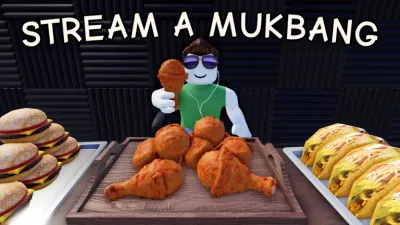
The official game icon below is an identity reference from Roblox’s thumbnails endpoint. It is not a capture of the in-game screen, so use it to confirm the experience name rather than to infer the position of a current button.
3. Reset a stuck overlay or half-loaded view
If the screen remains covered after one careful close attempt, make a short note of what you saw: device, server type, visible label, and whether the avatar had loaded. Then use the platform’s normal reset or rejoin path. A reset is a diagnostic step, not proof that the game mechanic is broken. Wait for the objective to appear after the reset before opening menus again.
If the screen is still blank, leave and join a current server from the official experience listing. Test the same view once. If it works after rejoining, the first state was probably a loading or server issue. If it fails in the same way twice, keep the exact wording and platform in your report so another player can reproduce it.
Do not download a “screen cleaner,” executor, or browser extension that asks for a Roblox cookie. A third-party tool cannot safely repair a server-rendered objective, and it adds account risk without creating better evidence. The chat guide follows the same rule when a chat field is missing.
4. Mobile and keyboard checks
The most common mobile version of a cluttered screen is a keyboard or compact panel hiding the action. Read the message first, then close the keyboard with the device control. Keep the game in the foreground while the server responds. If the objective returns but the table is off-screen, recenter the camera instead of tapping the same area repeatedly.
Use a small test sequence:
- Let the avatar, table, and objective finish loading.
- Close chat, inventory, or another visible overlay.
- Move the camera until the full table is visible.
- Release the camera and read the objective.
- Perform one action and wait for the resulting state.
If the result is a reward or code issue rather than a view issue, switch to the codes page and record the source date. A code can change the account state, but it should not require an unsafe download to make the screen usable.
Screen recovery after an update
After a Roblox or game update, re-check the panel close control, camera sensitivity, objective location, and reset behavior. Do not copy an old screenshot as if it were a permanent layout. Record the date, device, server condition, and exact label you saw. The updates log can then describe a change as observed, reported, or verified instead of turning a single blank frame into a universal claim.
Keep the table intent separate while testing. If the screen is clear but the objective still asks for food or collection, use the food list and table guide. If you are deciding what to do in your first session, the beginner guide gives the wider loop. Those pages answer progression questions; this guide answers how to see and control the current screen again.
FAQ boundaries and safe fixes
There is no universal “clear screen” script that should be installed for Stream a Mukbang. The safe path is deliberately ordinary: pause, identify the overlay or camera state, close one panel, confirm the objective, and rejoin once if the view is still stuck. Roblox account controls and official support should handle account-side communication or safety restrictions. A community post can be a lead, but it is not proof that a download or executor is required.
When you report a problem, include the official experience link, the device, the server state, and the exact visible screen. Say whether the table was visible, whether a panel had a close button, and whether a rejoin changed the result. That small record helps other players separate a screen recovery step from the separate question of how to clear a table.
Summary
To clear a Stream a Mukbang Roblox screen, stop repeated input, identify the panel or camera state, close one overlay, and confirm the objective. Use a reset or fresh server only after recording the first state. Keep table rewards, codes, chat settings, and screen recovery as separate checks, and never trade account security for a script or executor.
Related Articles
guides
Stream a Mukbang Codes Not Working? Fix Invalid Redeem Codes
Stream a Mukbang codes not working? Check the source, redeem one code correctly, separate expiry from server delay, and know when to re-check the code list.
guides
How to Chat in Stream a Mukbang Roblox: Settings and Fixes
Learn how to use text chat in Stream a Mukbang on Roblox, check privacy settings, fix missing chat on mobile, and stay clear of unsafe scripts.
codes
Stream a Mukbang! Codes: Working Roblox Codes
Find the Stream a Mukbang codes listed by the developer, see rewards and sources, and follow a safe redemption checklist when a code stops working.
Was this helpful?
Thanks for the feedback!